
Last Updated: 18 Mar 2026
To make your search more specific and precise, Libryo Sites gives you the ability to use filters, narrowing down your results and making the procedure even faster.
How to Use the Filtering Options
Learn how to use the filter options available in the Requirements, Updates and Tasks modules.
Requirements
Libryo Sites gives you the ability to filter your Requirements by Jurisdiction Types, Categories, Topics, Control Type, Document Type and Compliance. This is useful when you want to narrow down your results while saving time.
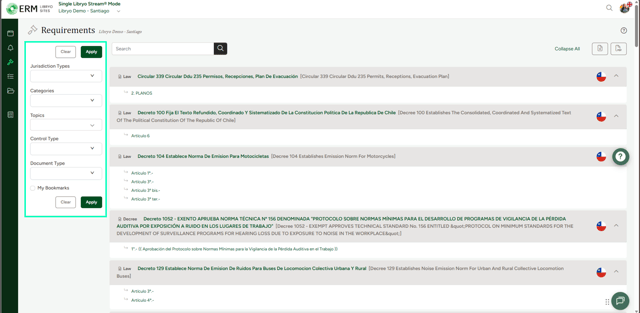
1. Once you are in the Requirements section, locate the Filtering Panel on the left side of the screen. This panel contains dropdown menus for refining your search.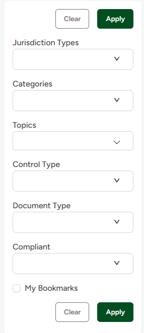
2. Jurisdiction Types:
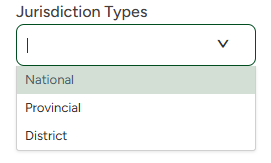
Click on the dropdown menu under "Jurisdiction Types" to select the type of jurisdiction relevant to your search for legal requirements. Please note that the jurisdiction type may vary based on the country where the site is located.
3. Categories:
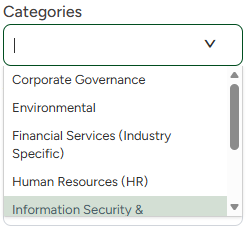
Click on the dropdown menu under "Categories" to choose the category of legal requirements you wish to search for.
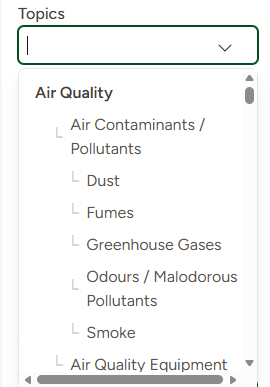
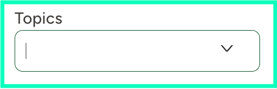
4. Topics:
Click on the dropdown menu under "Topics" to refine your search further by selecting a specific topic
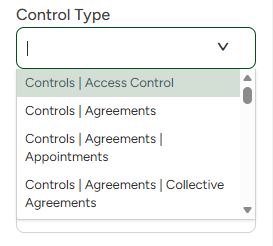
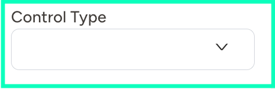
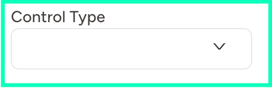
5. Control Type:
Click on the dropdown menu under "Control Type" to select the specific control type relevant to your search.
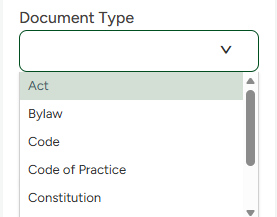
 6. Document Type:
Click on the dropdown menu under "Document Type" to select the specific control type relevant to your search.
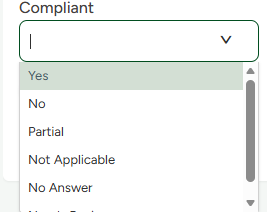
7. Compliance:
Click on the dropdown menu under "Compliant" to select the specific control type relevant to your search.
8. My Bookmarks (Optional):
If you have bookmarked specific requirements, you can select the checkbox labeled "My Bookmarks" to filter results accordingly.

9. Applying or Clearing Filters:
- After selecting your desired filters, click the green Apply button to update the results.
- If you want to reset all filters, click the Clear button.
If you want to learn more about how to Search Requirements, click here.
Updates
Libryo Sites gives you the ability to filter your legal Updates by Category, Read Status and Date. This is useful when you want to narrow down your results while saving time.
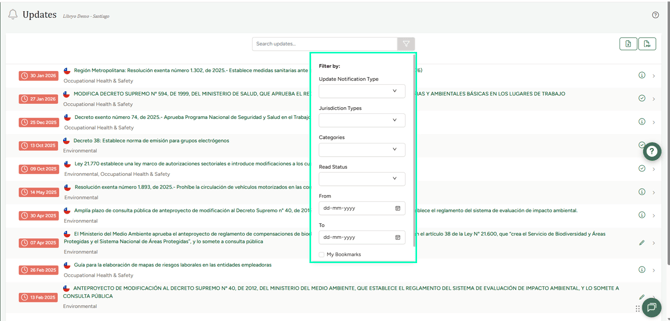
1. Click on  next to the search bar.
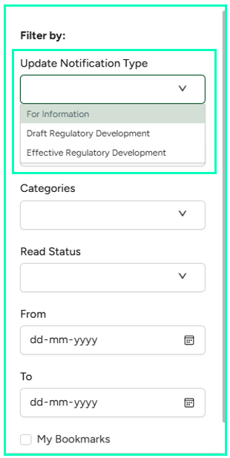
2. Select the Update Notification Type you wish to filter by (e.g. For Information, Draft Regulatory Development, Effective Regulatory Development).
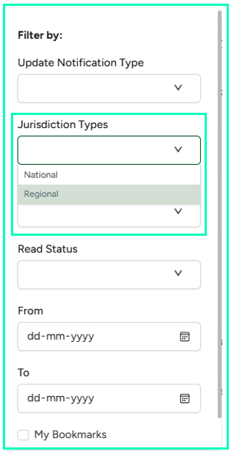
3. Select the Jurisdiction Type you wish to filter by (e.g., National, State, Provincial, Municipal). Please note that available jurisdiction types may vary depending on your country and its legal structure.
4. Select the Category you wish to search for legal Updates. (e.g. Environmental, Quality, Occupational Health and Safety, etc.)
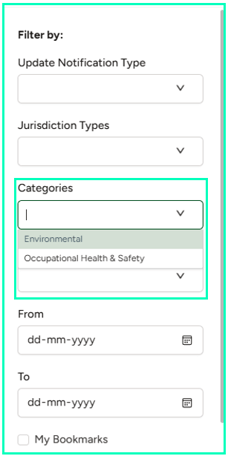
5. Select the Read Status you wish to view legal updates for. These can be Unread, Read and Read and Understood.
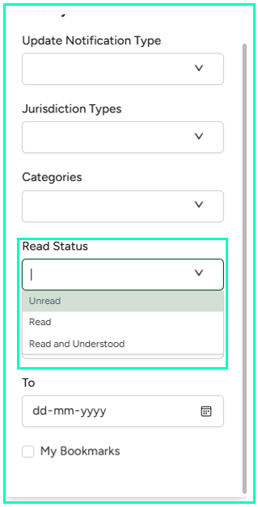
6. Choose the time period for which you want to view the legal updates. To do this select a date for which you wish to see only updates After it and a date for which you wish to see only updates Before it.
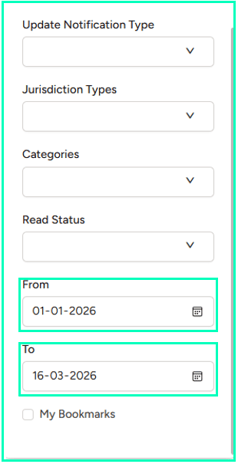
Actions
In the Actions module, Libryo Sites equips users with a consistent and powerful filtering panel available across all its sections: the Planner, Actions Manager, and Checklist. This tool allows you to refine and customize your task view, making it easier to navigate, focus on the most relevant tasks, and manage your compliance efforts with precision. By enabling users to filter by Assigned To, Project, Task Status, Priority, and more, the filtering panel ensures a streamlined and efficient approach to handling tasks throughout the Actions module.
1. In either the Planner, Actions Manager, or Checklist sections of the Actions module, you can navigate to the filtering panel on the left-hand side. This panel is a powerful tool for refining your task view, allowing you to focus on the most relevant tasks across all sections.
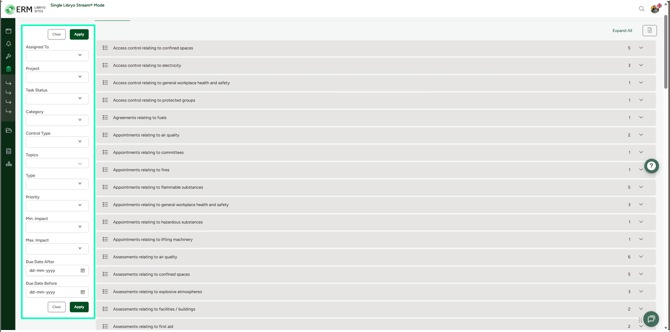
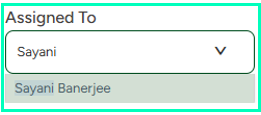
2. Assigned To: Filter tasks based on the assignee to focus on specific individuals within the team. You can also search for team members by typing their names in the box.
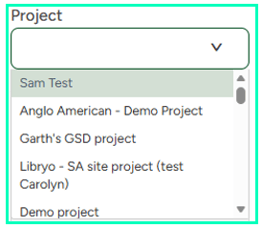
3. Project: Narrow down tasks by their associated project for better organization.
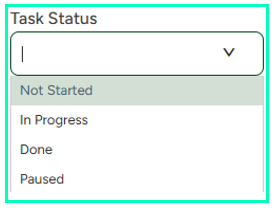
4. Task Status: View tasks based on their current status, such as "Not Started," "In Progress," "Done," or "Paused."
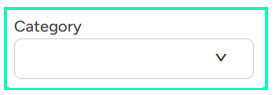
5. Category: Refine tasks by the Category.
6. Control Type: Refine tasks by the type of control.
7. Topics: Filter tasks based on specific topics relevant to compliance.
8. Type: Focus on tasks based on which module they were created in on Libryo Sites.
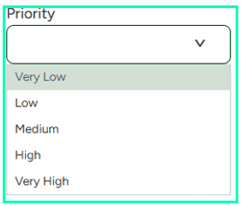
9. Priority: Sort tasks by their urgency to prioritize your efforts.
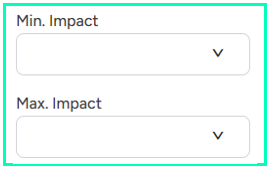
10. Min. Impact/Max. Impact: Filter tasks based on their impact rating to target high or low-impact actions.
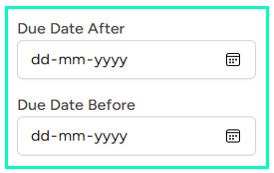
11. Due Date After/Due Date Before: View tasks with deadlines within a specified date range to plan accordingly.
12. Applying or Clearing Filters:
- After selecting your desired filters, click the green Apply button to update the results.
- If you want to reset all filters, click the Clear button.
Task Manager
Libryo Sites gives you the ability to filter your Tasks by the following.
2. Assigned To: Filter tasks based on the assignee to focus on specific individuals within the team. You can also search for team members by typing their names in the box.
3. Project: Narrow down tasks by their associated project for better organization.
4. Task Status: View tasks based on their current status, such as "Not Started," "In Progress," or "Done."
5. Category: Refine tasks by the Category.
6. Control Type: Refine tasks by the type of control.
7. Topics: Filter tasks based on specific topics relevant to compliance.
8. Type: Focus on tasks based on which module they were created in on Libryo Sites.

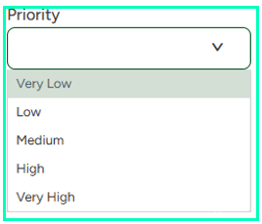
9. Priority: Sort tasks by their urgency to prioritize your efforts.
10. Min. Impact/Max. Impact: Filter tasks based on their impact rating to target high or low-impact actions.
11. Due Date After/Due Date Before: View tasks with deadlines within a specified date range to plan accordingly.
12. Applying or Clearing Filters:
- After selecting your desired filters, click the green Apply button to update the results.
- If you want to reset all filters, click the Clear button.
Have any questions?
At Libryo, we really want all our users to get the most from our system. We hope that this article was useful. If you still have some questions, please email us.