
When you're added to ERM Libryo Assess, you'll receive an invitation email to set up your account and log in for the first time. This article walks through that process.
If you already have an account and just need to reset a forgotten password, see the Reset Your Password article instead.
Set up your account and log in
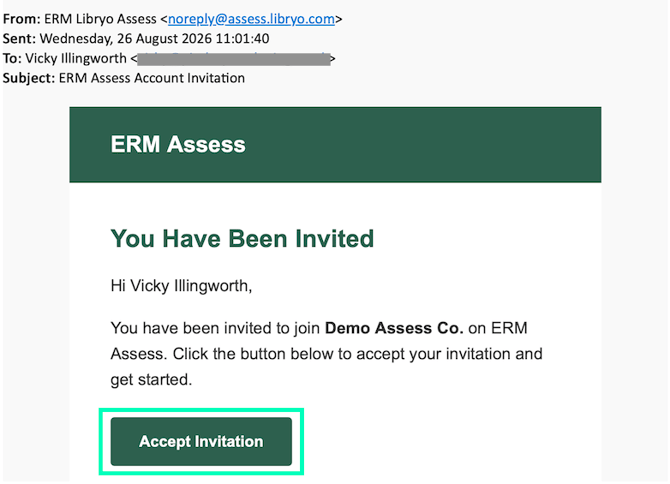
1. Open the invitation email you receive when you're added to ERM Libryo Assess, and click Accept Invitation. You will also be able to see what Entity you have been added to.
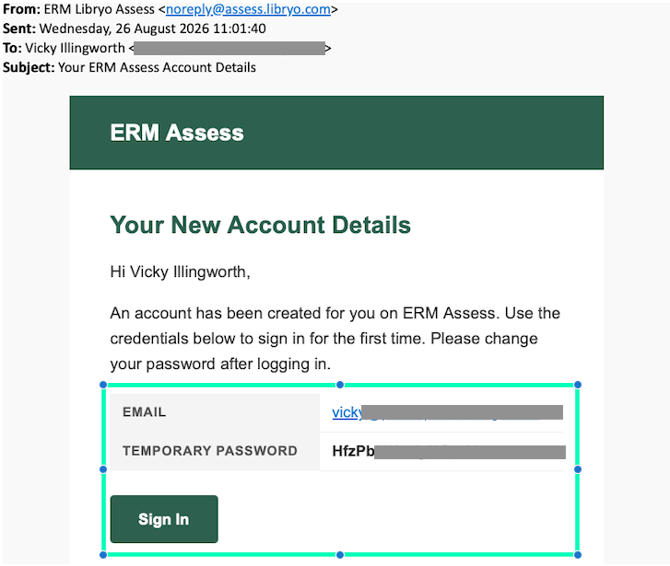
2. You will receive a second email shortly afterwards with your temporary login credentials. Click Sign In, then enter your email address and temporary password.
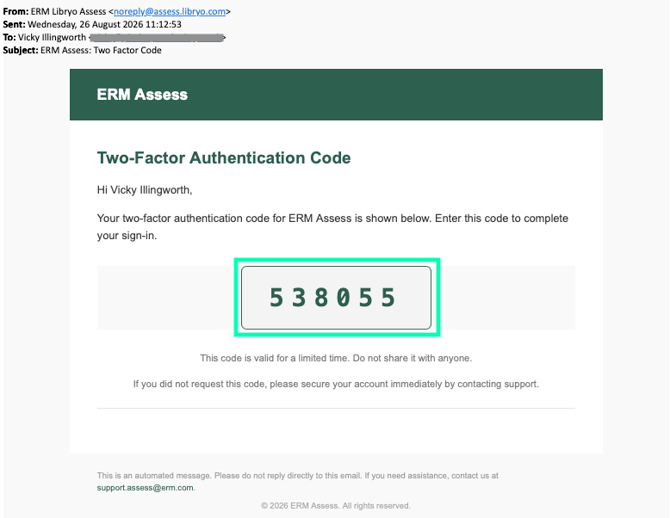
3. Once you enter your Email address and temporary password, you will see a Two-Factor Authentication screen. Look for a third email with a Verification Code, and enter this code to gain access to Libryo Assess.
4. Now you will be taken to the Libryo Assess Dashboard to start working in the application.
Have any questions?
At Libryo, we really want all our users to get the most from our application. If you have any questions or require further support, please contact us.