
Last Updated: 15 Sep 2026
Being a user with access to multiple sites doesn't have to be complex. In Libryo Sites you can access information from all your Libryo Streams at once using the Multi Stream Mode.
How to Activate the Multi Stream Mode
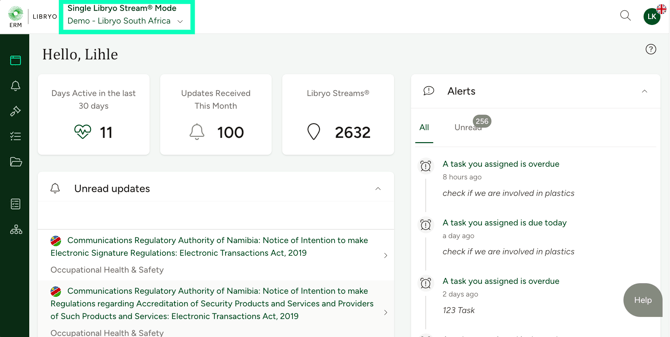
1. Log in to your account. Note that in the upper left corner of your screen, the name of the stream you are on will appear under Single Libryo Stream Mode.
2. Click on the down arrow next to your site name.
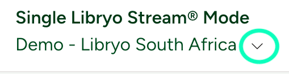
3. Select the Activate Multi Stream Mode option.

You now have access to your Legal Updates, Tasks, Action Areas, Checklist, Applicability Questions, Dashboard, and more, across all sites of your organization.
Note that the name of the Active Organisation will appear in the top left-hand corner of your screen, in place of your site's name. 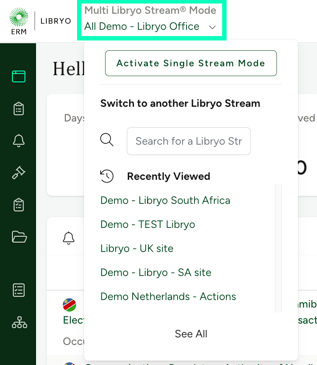
4. Features Supported in Multi-Stream Mode:
4.1 Viewing Applicability Across Streams
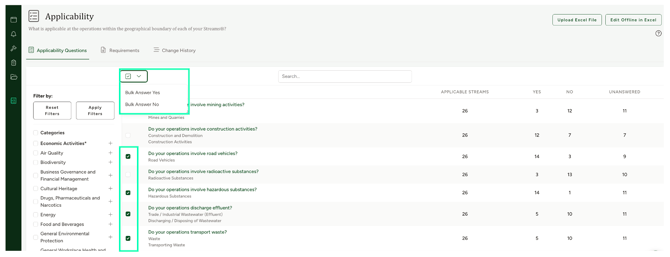
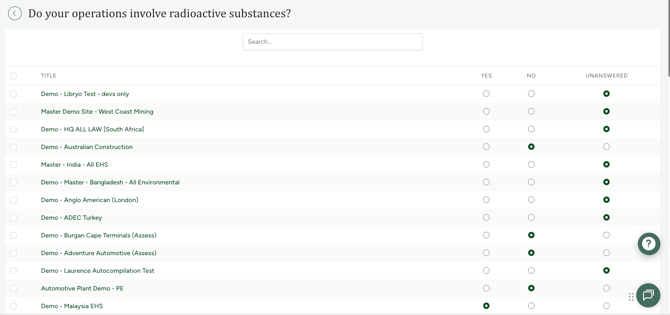
Each question shows a breakdown of Applicable Streams, along with how many have answered Yes, No, or are still Unanswered — giving you a quick overview of applicability status across your organization.
4.1.1 Bulk Answering Applicability Questions
In Multi-Stream Mode, you can update applicability questions across all streams in bulk. To do this, follow the steps below:
-
Navigate to Applicability, then select the questions you'd like to update by checking the box to the left of each question.
-
Once you've made your selection, a green checkbox with a dropdown will appear at the top-left, just below the Requirements tab.
-
Click the dropdown and select the most appropriate answer. For example, "Bulk Answer Yes" applies Yes to all selected questions at once, while "Bulk Answer No" applies No instead.
4.1.2 Viewing Answers by Stream
Click into any question to see how each individual Stream has answered - Yes, No, or Unanswered - allowing you to review or adjust responses at a more granular level before or after a bulk update.
4.2 Viewing Updates
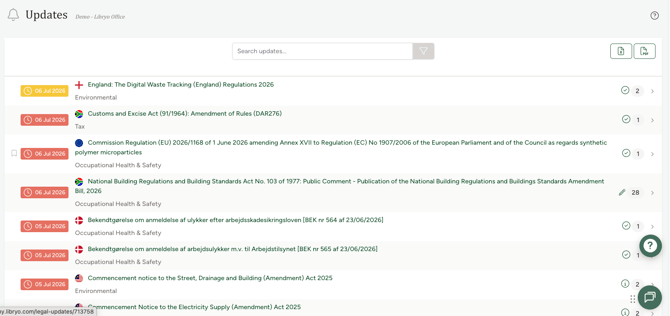
In Multi-Stream Mode, you can view Updates across all your streams and mark them as Read or Read and Understood. Each update in the list shows the number of Streams it applies to, so you can quickly gauge its reach across your organization before opening it.
To get started follow the steps below:
-
Click on Updates from the left-hand panel and select the update you wish to mark.
-
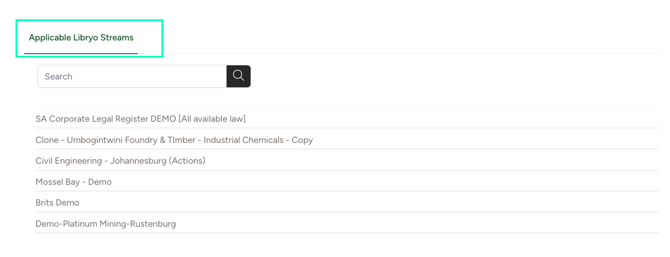
To check which streams the change will apply to, click on the update and scroll to the bottom of the page — the relevant streams will be listed under Applicable Libryo Streams.
4.3 Actions - Planner
In Multi-Stream Mode, you can mark compliance for each of your action areas. To do this, follow the steps below:
-
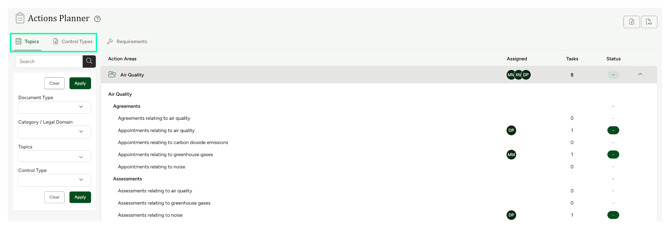
Click on Action Planner from the left-hand panel.
-
Select either the Topic or the Control Types tab, depending on how you would like to navigate.
-
Expand the relevant Topic or Control Type.
-
Click on the desired Action Area.
-
The compliance status of that Action Area will be displayed across all relevant streams. Any changes made here will be reflected on the specific stream.
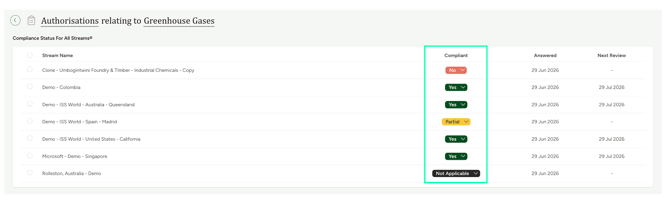
- Scroll down on the same page to view the tasks associated to the action area. Any changes made here would be updated on the specific stream.
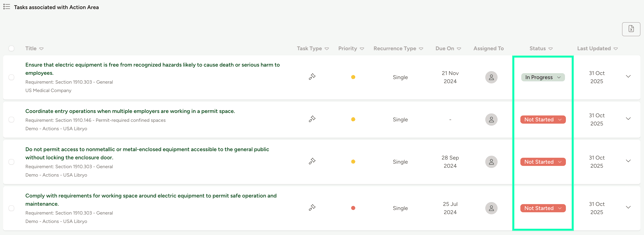
- Scroll to the bottom of the page to view the requirements related to the action area. Any changes made here will be reflected on the specific stream.
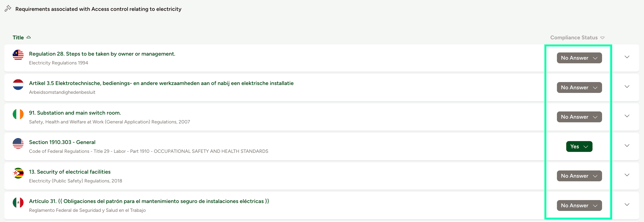
4.4 Actions - Task Manager
Task Manager lists all tasks across multiple streams in one place, allowing you to track compliance for each one. For every task, you can see the Libryo Stream it was created in and the Requirement it's tied to, if applicable. You can also use the filter on the left-hand side of the page to view tasks by a specific stream.
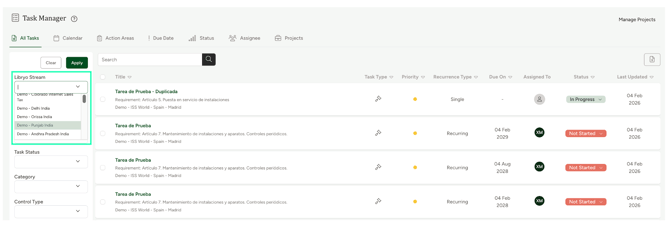
4.5 Actions - Checklist
In Multi-Stream Mode, you can bulk update the compliance status for multiple action areas. To do this follow the steps below:
-
Click on Checklist under Actions.
-
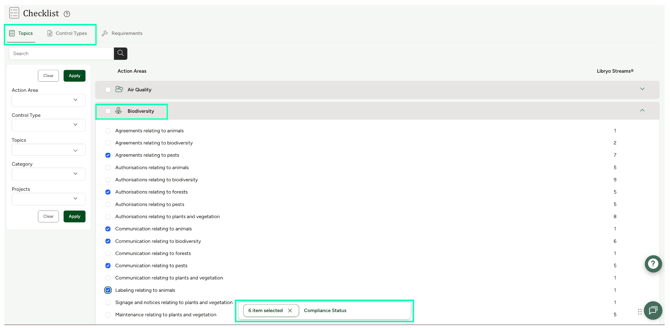
Expand the desired Topic or Control Type and select all the action areas you'd like to update. The number of selected items will appear at the bottom of the page.
-
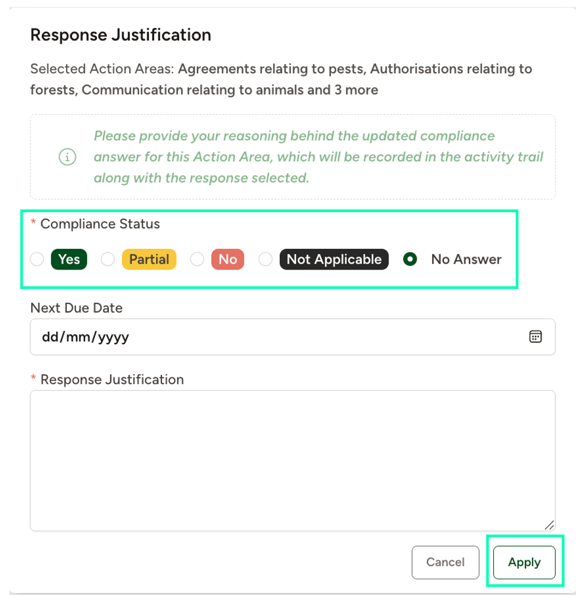
Click on Compliance Status next to the count, choose the most appropriate status, upload a justification, and set a next due date (if applicable).
-
Once done, click Apply to save — the changes will then reflect across all your relevant streams.
Note: To see which streams will be affected by a change, click on the action area in either the Topic or Control Type view — the relevant streams will be listed under Compliance Status for All Streams.
4.6 Actions - Dashboard
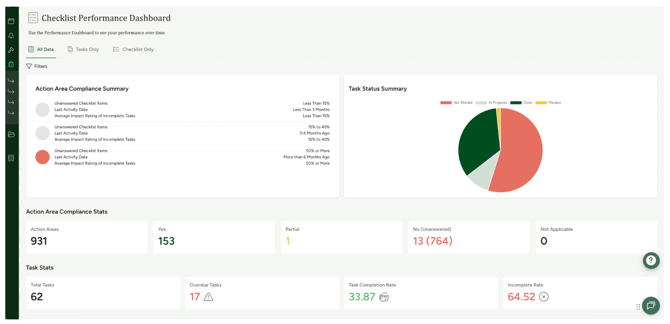
In Multi-Stream Mode, you get a comprehensive overview of compliance and task performance across all your Streams in one place. This includes:
-
Action Area Compliance Summary: how many Action Areas fall into each risk band, based on unanswered checklist items, last activity date, and average impact rating of incomplete tasks.
-
Task Status Summary: the breakdown of all tasks created across every Stream, by status (Not Started, In Progress, Done, Paused).
-
Action Area Compliance Stats: the total number of Action Areas across all Streams, and how many are marked Yes, Partial, No (with Unanswered in brackets), or Not Applicable.
-
Task Stats: total tasks created across all Streams, along with Overdue Tasks, Task Completion Rate, and Incomplete Rate.
-
Checklist Status: a quarter-by-quarter comparison (Q1, Q2, This Quarter) of checklist answers across all Streams.
-
Compliance Over Time: a monthly view of how compliance answers (Yes, Partial, No, No Answer, Not Applicable) have shifted over time.
-
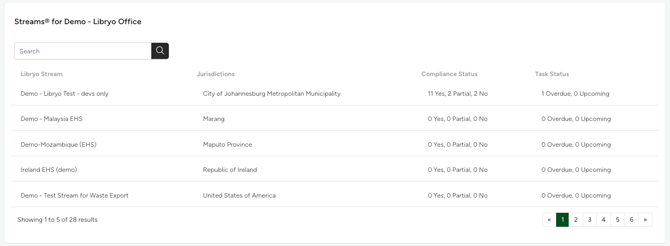
Streams table: a searchable list of every Stream in your organization, showing its jurisdiction, compliance status breakdown (Yes/Partial/No), and task status (Overdue/Upcoming) - so you can quickly find and check the performance of a specific Stream.
How to Deactivate the Multi Stream Mode
If you wish to exit the Multi Stream Mode, click on the down arrow next to your organisation's name and select Activate Single Stream Mode.

Have any questions?
At Libryo, we really want all our users to get the most from our system. We hope that this article was useful. If you still have some questions, please email us.