
Last Updated: 17 June 2026
Adding Comments to a Section of Law
To add a comment to a particular section of law, follow these steps:
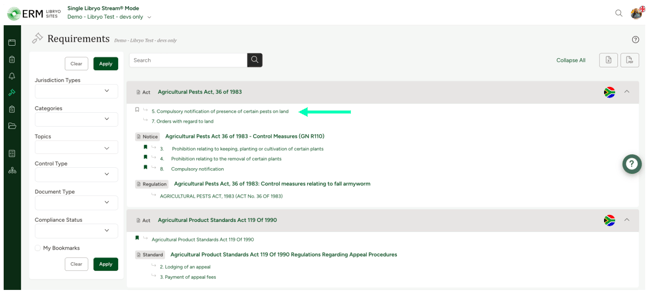
- Navigate to the Requirements module and click on the section of legislation you wish to comment on.
- Once redirected to the page with Requirement Details, scroll to the bottom right corner.
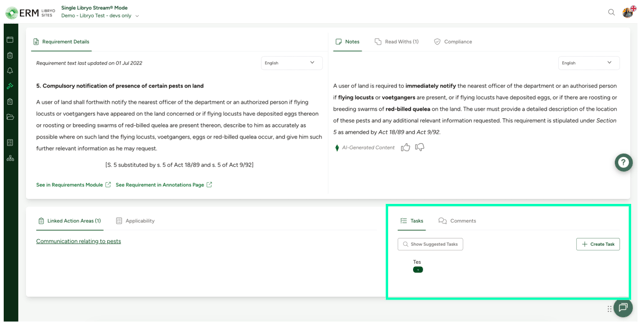
- Click on the Comments tab.

- In the Comments tab, type your comment. You can also use the @ symbol to mention a teammate in the comment. Once done, click Post to save the comment.
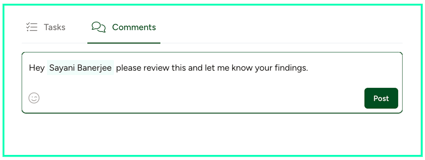 If you tag a team member in the comment, they will receive a notification that they were mentioned.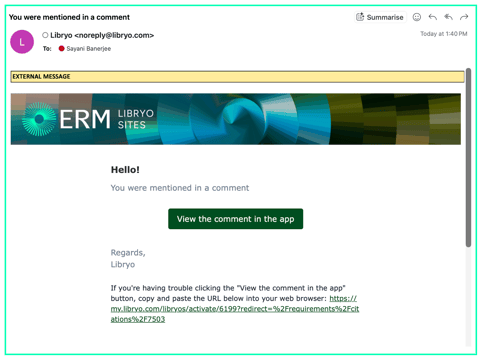
- To upload an attachment to the comment:

5.2 Choose an image or file to upload and click on "Upload Files"

5.3 When the popup appears, select the folder within the Drives module where the file will be stored.
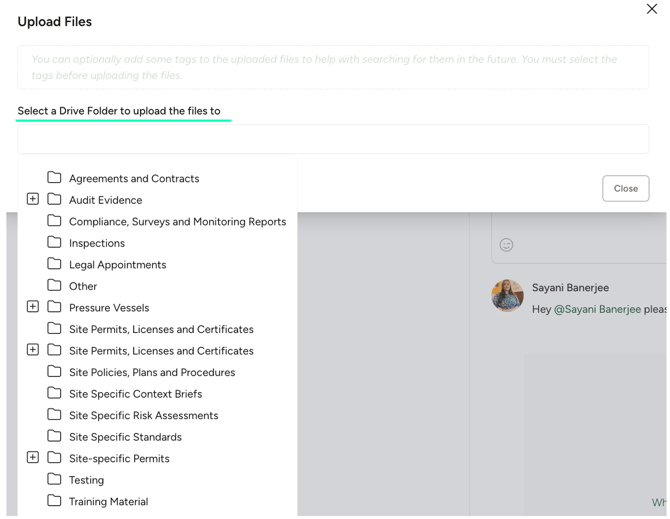
5.4 After selecting your file, a confirmation message will appear. Click on "Close" to complete the process.
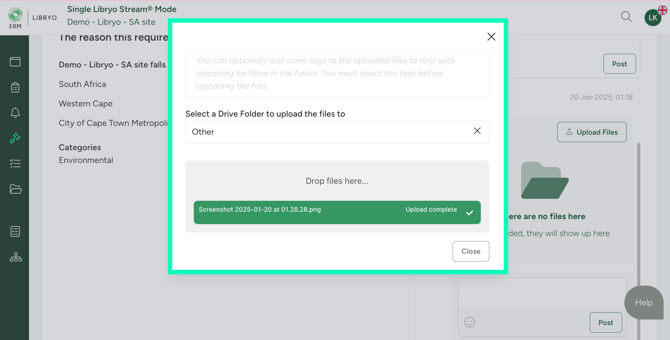
Note: The uploaded document can be accessed both within the section where it is attached and in the Drives module.
Adding Comments to a Legal Update
Libryo Sites will notify you of any changes to legislation that is applicable to your site or organisation. You are now able to post a comment to a legislation change on Libryo Sites to better demonstrate and manage your compliance with the change.
To add a comment to a particular legal update, follow these steps:
Click on a legal update on your Updates module.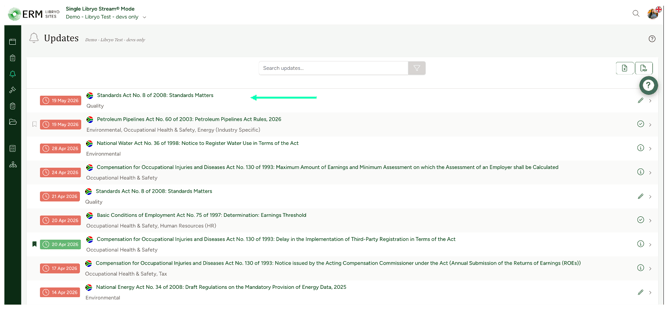
Once redirected to the page with the update, scroll to the bottom right corner.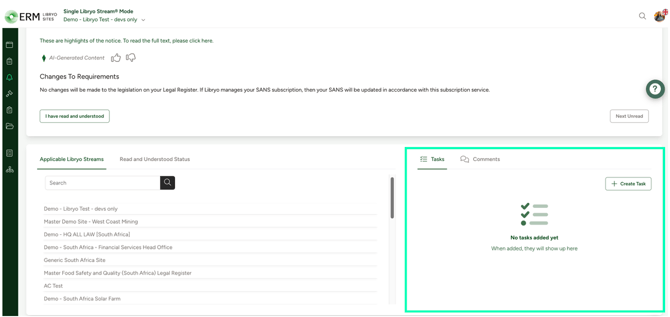
Click on the Comments tab.
In the Comments tab, type your comment. You can also use the @ symbol to mention a teammate in the comment. Once done, click Post to save the comment.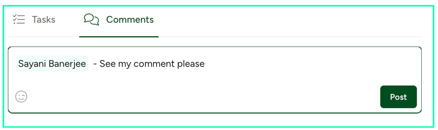
If you tag a team member in the comment, they will receive a notification that they were mentioned.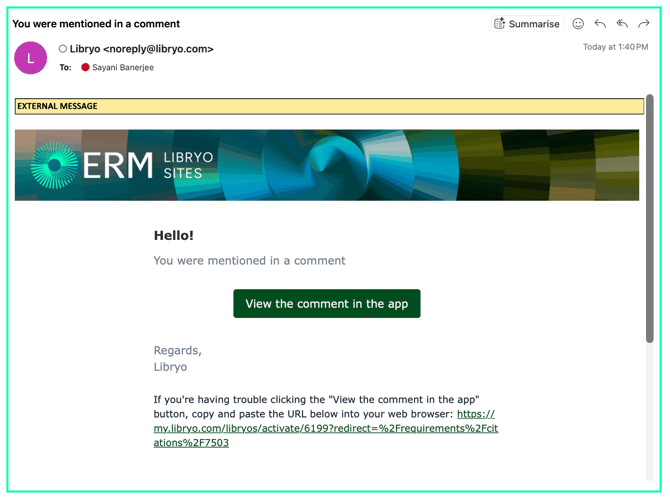
To upload an attachment to the comment:
5.1 Click the Attachment icon above the comment.
5.2 Choose an image or file to upload and click on "Upload Files"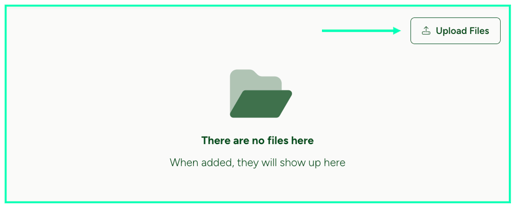
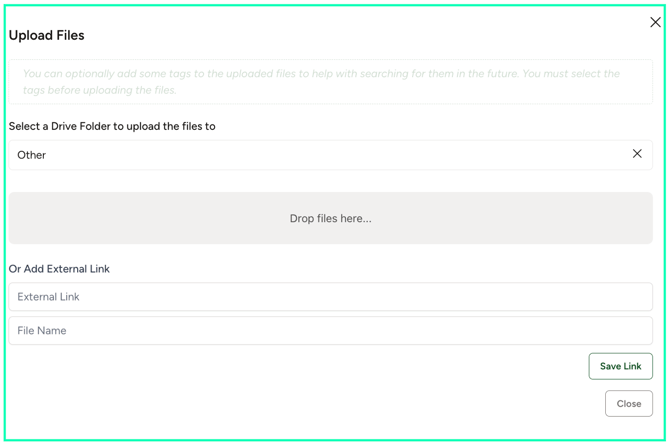
5.3 When the popup appears, select he folder within the Drives module where the file will be stored
5.4 Click on "Drop files here" and choose a file from your device or add an external link with a file name under "Add External Link".
Note: The uploaded document can be accessed both within the section where it is attached and in the Drives module.
Adding Comments to a Document
Libryo Sites provides a central repository where you can store all your documents. You are now able to post a comment to a document to better demonstrate and manage your compliance regarding that document.
To add a comment to a particular document, follow these steps:
- Click on the folder you want to open in the Drives module.
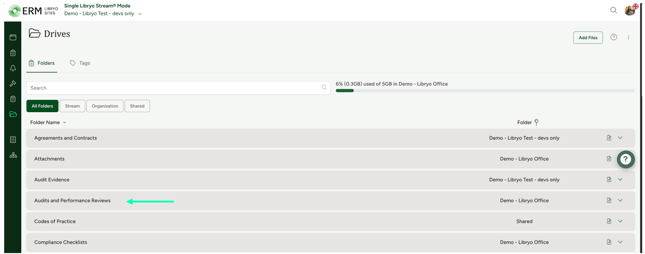
- In the folder, select the document you want to open. Click on the Comments tab on the right-hand side of the page, type your comment, or use the @ symbol to mention a teammate, and click on Post to submit it.
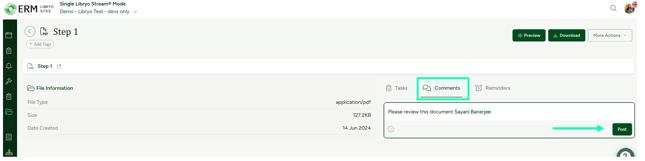
If you tag a team member in the comment, they will receive a notification that they were mentioned.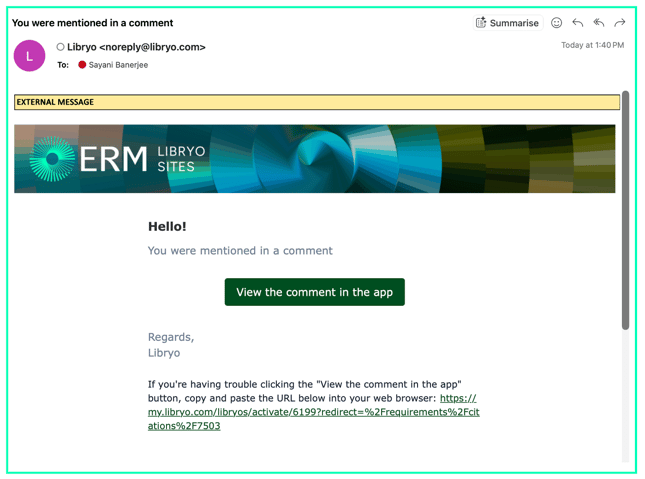
To upload an attachment to the comment:
4.1 Click the attachment icon above the comment.
4.2 Choose an image or file to upload and click on "Upload Files"
4.3 When the popup appears, select he folder within the Drives module where the file will be stored
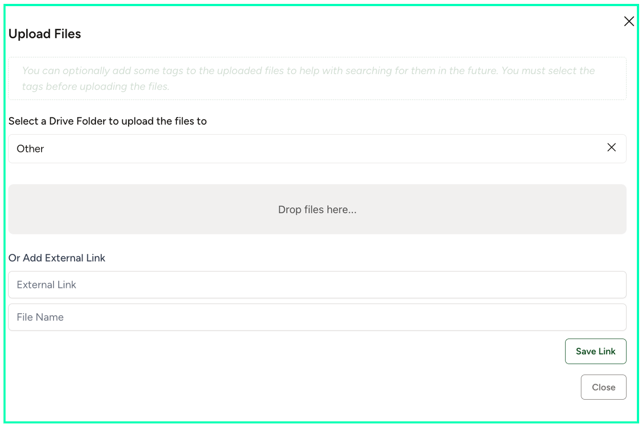
Note: The uploaded document can be accessed both within the section where it is attached and in the Drives module
Alerts
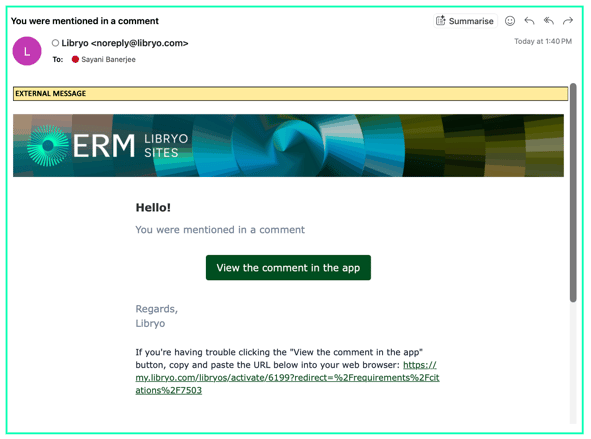
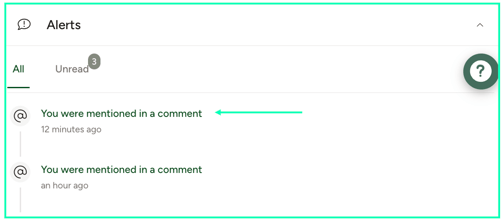
If a teammate mentions you in a comment, you will receive a notification via email or through the Alerts section on the Libryo Sites application.
- In your email, click on "View the comment in the app" or copy and paste the URL from the email into your web browser. This will take you directly to the comment.
- Alternatively, you can access the comment by navigating to the Alerts section on the dashboard. Click on the notification to view the comment, and you will be directed to it.
Have any questions?
At ERM Libryo, we really want all our users to get the most from our platform. We hope that this article was useful and if you have questions or need any more help, please contact us.