
Last updated: 17 Jul 2026
Use the Requirements module to find the laws relevant to your business. Search by keyword using Word Search, Requirement Documents, or Topics. You can also use Global Search to find content across the platform. A Requirements Overview panel on the right lets you generate an AI summary of the requirements related to your search.
Searching Your Requirements
Libryo Sites also gives you the ability to search for a specific term among all your legal requirements. To do this, simply type in the concerned word, and the system will return the Requirement Documents that refer to that term, as well as the topics related to it. If you prefer, you can also run the Word Search which will identify all legal requirements that contain the searched term in their legal text.
1. Click on the search bar and type the concerned term.
2. Select whether you want to search by Word Search, Requirement Documents or Topics.
3. Only results related to the searched term will show.
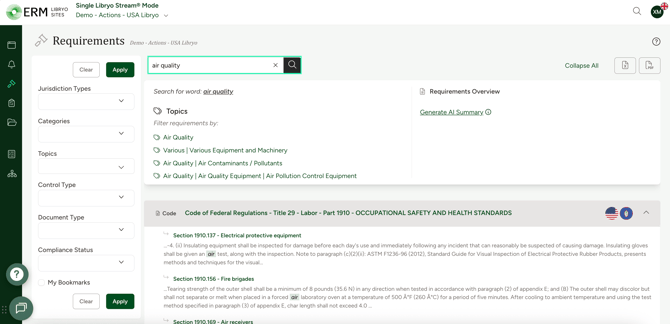
Requirements Overview: AI-Generated Summary
When you search for a word or phrase, a Requirements Overview panel appears on the right side of the screen. This panel includes a Generate AI Summary option, which uses AI to produce a plain-language summary of the requirements related to your search.
To generate an AI summary:
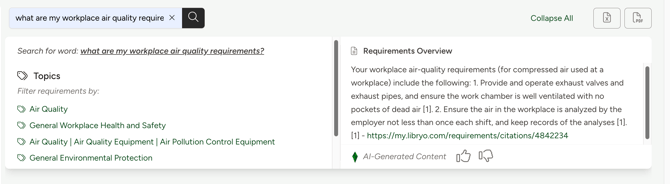
- Type a keyword or a natural language question in the search bar (e.g. "what are my workplace air quality requirements?").
- In the Requirements Overview panel on the right, click Generate AI Summary.
- The summary will load in a few seconds, providing a concise overview of the applicable requirements for your search term.
- Use the thumbs up / thumbs down icons to rate the quality of the summary and help improve the feature.
Note: AI-generated summaries are based on the requirements that apply to your organisation specifically — not the entire legislation database. They are intended to help you quickly understand the scope of your applicable requirements.
Global Search
The Global Search enables you to search seamlessly across all modules of the platform in a single step, granting you access to content from every section of Libryo. This allows you to quickly and effortlessly locate what you need without having to pinpoint the exact section.
1. To open the Global Search, simply click on  in the top right corner of your screen.
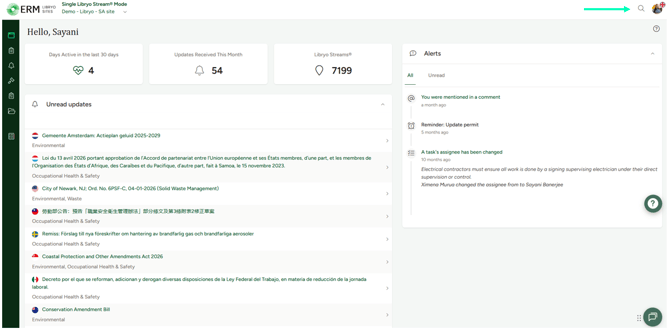
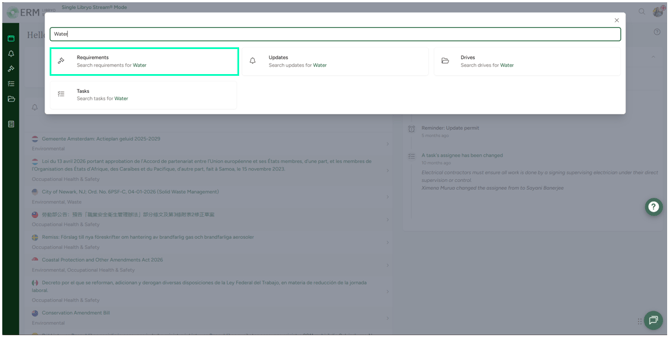
2. In the search field, start typing the relevant term and the system will display the options of Requirements, Updates, Tasks and Drives related to it.
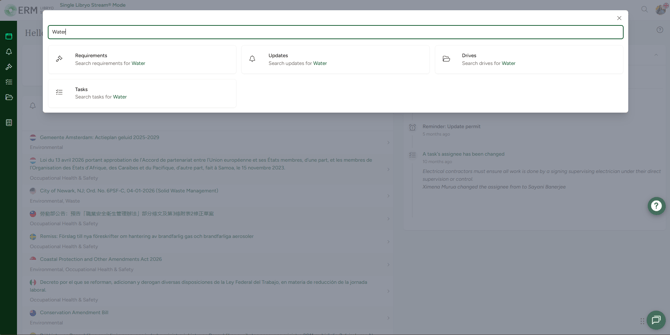
3. Click on Requirements to search the corresponding term on the Requirements module.
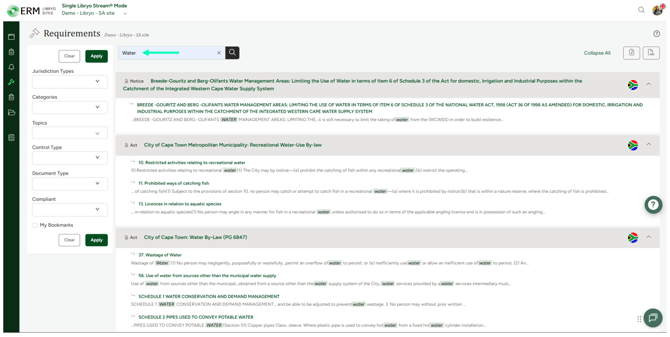
4. You will be redirected to the Requirements module, dule and you can complete your search using the filters available in the module.
Have any questions?
At Libryo, we really want all our users to get the most from our system. We hope that this article was useful. If you still have some questions, please contact us.