
Last Updated: 18 Jun 2026
If you identify a legal requirement that requires follow-up, such as renewing a permit or license, you can create a reminder to ensure that no deadlines are missed. Reminders can be set for yourself or assigned to other team members. Follow the steps below to configure a reminder.
Creating Reminders
1. You can set a reminder for a task by clicking on the Reminders section.
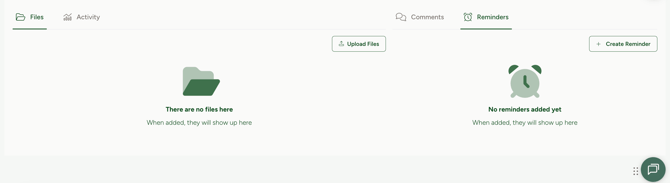
2. Click Create Reminder.
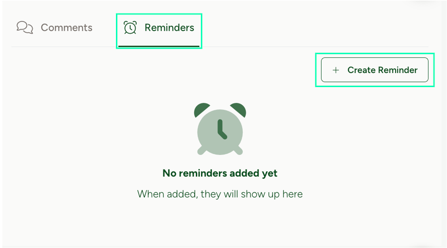
3. A new pop-up window will appear where you can define the reminder details.
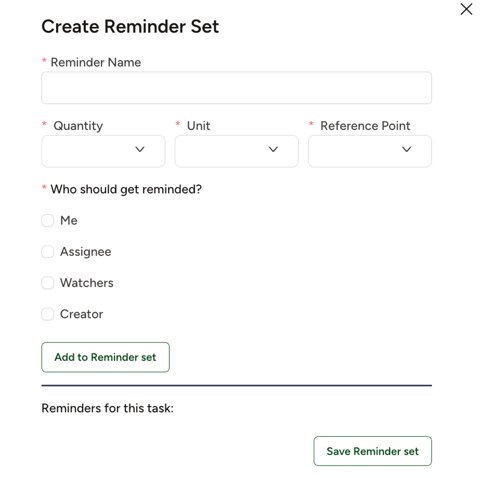
- Fill in the reminder details
- Enter a Reminder Name.
- Set the Quantity, Unit (e.g., Day, Week), and Reference Point (e.g., Before Start Date, Before Due Date).
- Select who should get reminded
- Choose one or more options: Me, Assignee, Watchers, Creator.
- Choose one or more options: Me, Assignee, Watchers, Creator.
- Add to the Reminder Set
- Click Add to Reminder Set to include the reminder in the task.
- You can add multiple reminders if needed.
- Save the Reminder Set
- Once all reminders are added, click Save Reminder Set to confirm.
- The reminders will now be linked to your task.
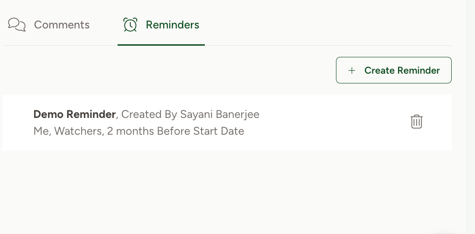
4. Your reminder will then be set.
How will you receive the reminder?
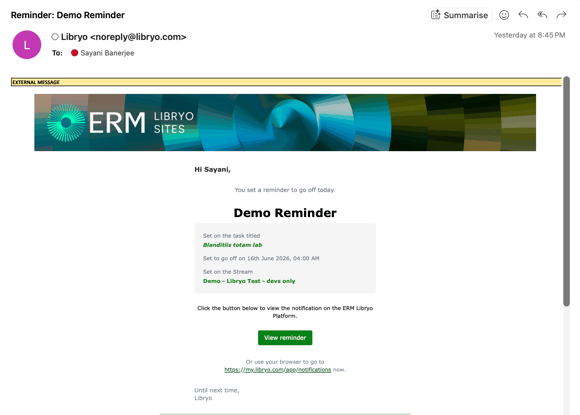
When the reminder is due, you will be sent a notification to your email inbox.
How to Configure Task Reminders for a Task
-
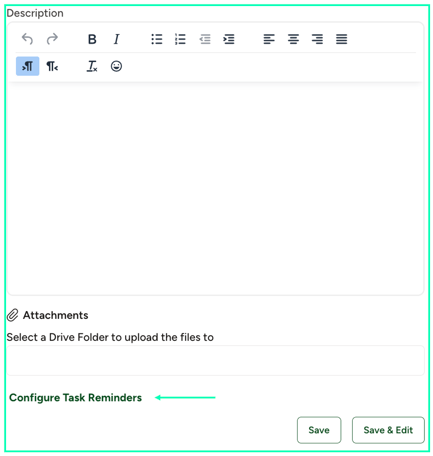
When creating a new task, click “Configure Task Reminders”
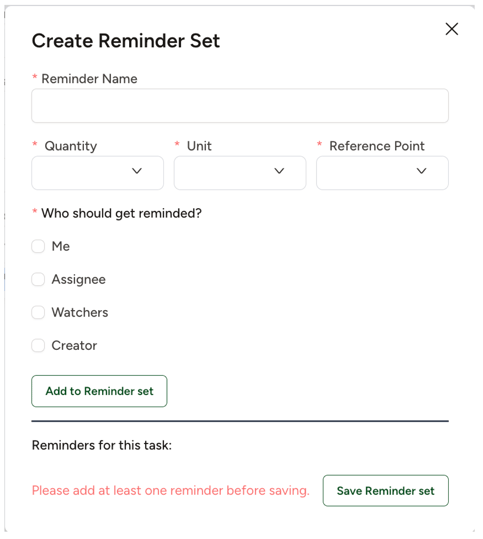
The Create Reminder Set window will open.
-
Add a Reminder Name
-
Give the reminder set a clear name so you can identify it later.
-
-
Set Reminder Timing
-
Define when the reminder should be sent by entering:
-
Quantity (e.g., 2)
-
Unit (e.g., Days, Weeks)
-
Reference Point (e.g., Before Due Date, After Start Date).
-
-
-
Choose Who Should Get Reminded
-
Select one or more options:
-
Me
-
Assignee
-
Watchers
-
Creator
-
-
-
Add to Reminder Set
-
Click Add to Reminder Set to include this reminder in the list.
-
You can add multiple reminders if needed.
-
-
Save the Reminder Set
-
Once all reminders are configured, click Save Reminder Set.
-
The reminders will now be linked to your recurring task.
-
How to Create a Task Reminder Default
Note: Only Admin users can create Task Reminder Defaults. Once configured, these reminders are applied to every new task.
Task Reminder Defaults allow Admins to automatically apply reminder rules to all tasks within selected projects and streams. This ensures consistency and helps teams stay on track with important deadlines.
Follow these steps to create a default reminder:
- In Org Settings → Configuration, click + New Default Reminders.
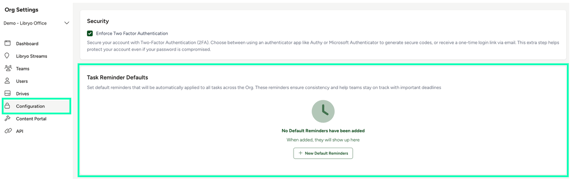
- A new pop-up window will appear, allowing you to set up all the details for your default reminder.
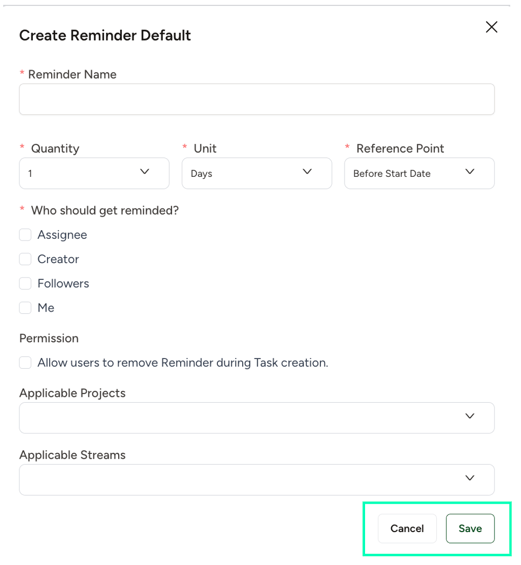
- Name the reminder
Enter a clear, descriptive title in the Reminder Name field. - Set the timing
Define when the reminder should be sent by specifying:
- Quantity (e.g., 1)
- Unit (Day, Week, Month)
- Reference Point (e.g., Before Start Date, Before Due Date).
- Select recipients
Choose who should receive the reminder. You can select one or more of the following:
- Assignee
- Creator
- Followers
- Me
- Adjust permissions (optional)
Check the box to allow users to remove the reminder during task creation if you want to provide flexibility. - Apply to projects and streams
Use the dropdown menus to specify the Applicable Projects and Applicable Streams where this default should be enforced. - Save the reminder default
Click Save to finalize.
The reminder will now be automatically applied to all tasks within the selected scope.
Have any questions?
At ERM Libryo, we really want all our users to get the most from our platform. We hope that this article was useful and if you have questions or need any more help, please contact us.