
The File Library gives you a central place to store files, photos, and supporting documents in Libryo Assess. It's available at three levels: organization, entity, and assessment. This article covers where to find the File Library at each level and how to upload files to it. Uploading and viewing works the same way across all three levels; what differs is where you access it, what you'd typically store there, and which roles can upload.
Where to find the File Library
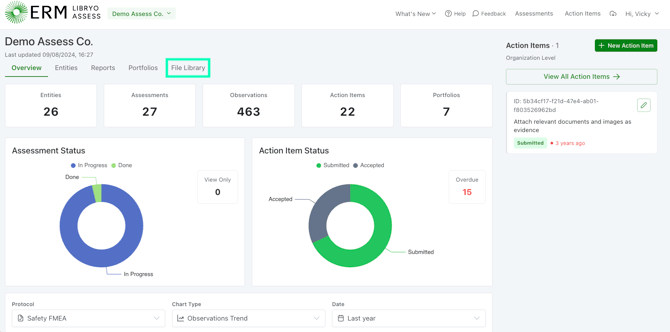
Organization level: from the Dashboard, below the main navigation bar, you will see File library alongside your Entities, Reports, and Portfolios.
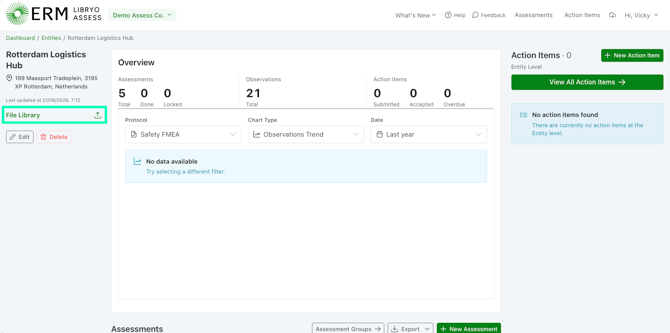
Entity level: when you click into an Entity, files can be uploaded to the File Library on the left-hand side.
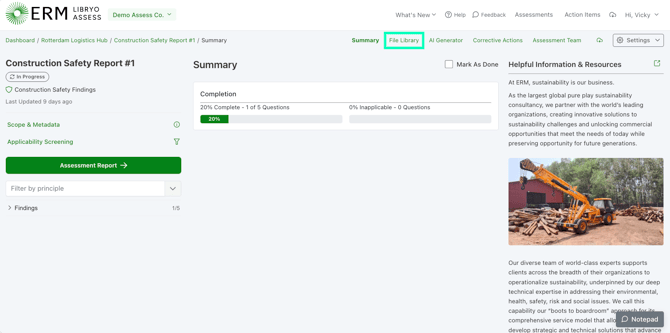
Assessment level: open the relevant Assessment, then select File Library from the secondary menu at the top of the screen.
Who can upload where
Upload access varies by level. Organization and entity level uploads are restricted to Admins, while assessment level uploads are open to Admins, Members, and Contributors, reflecting the Contributor role's focus on supplying evidence during assessments.
|
Level |
Typically used for |
Who can upload |
|
Organization level |
Company-wide documents relevant across all entities, such as group policies or corporate certifications. |
Admin only |
|
Entity level |
Documents specific to a single entity, such as site permits or local certifications. |
Admin only |
|
Assessment level |
Evidence gathered for a specific assessment, such as photos and supporting files from an audit. |
Admin, Member, Contributor |
Bulk upload files
Whichever level you're uploading to, the steps are the same.
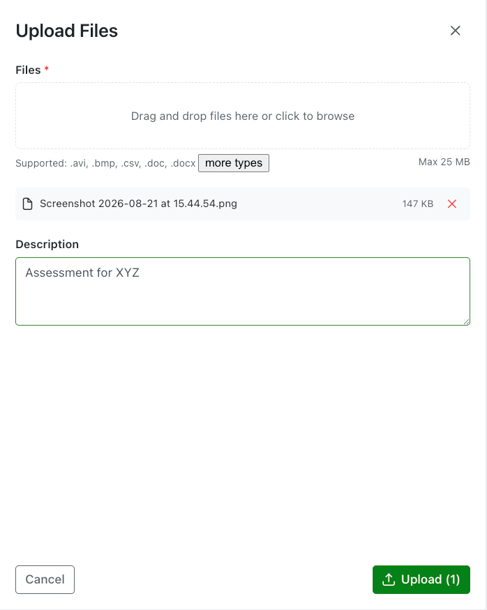
1. Select File Library from the menu and click Upload Files.

2. Upload files by dragging and dropping, or click to select files.
3. Enter a Description (optional) and then click Upload File(s). If you are uploading files from the Dashboard, you can also select a related Entity or Assessment (optional).
💡Good to know
- File size limits are 25MB.
- The File Library can also store links to Google Drive or SharePoint files, in addition to direct uploads.
- Files attached at the individual question level within an assessment are not included in AI processing.
- The File Library for Assessments is an optional feature and may not appear in every account.
- For AI-powered features available on assessment-level File Libraries, such as processing files and querying them with AI Insights, see the How to Complete an Assessment article.
Have any questions?
At Libryo, we really want all our users to get the most from our application. If you have any questions or require further support, please contact us.