
Entities are used to group users, sites, or standards within your organization's account. They can represent auditing groups, locations, or specific standards, such as the various auditing groups your organisation manages worldwide. User access is assigned at the entity level, so setting entities up correctly is an important first step before running assessments.
Where to find your entities
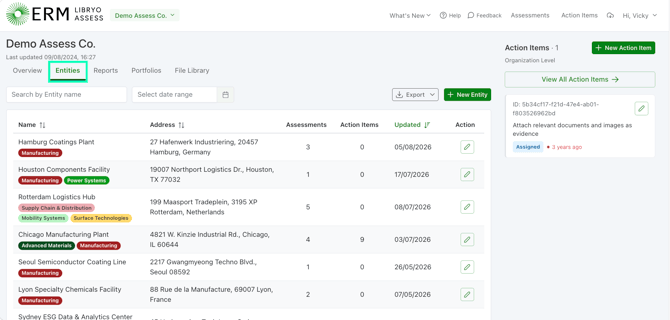
Your list of entities is available on the Entities tab of your organisation's Dashboard. From there you can search by entity name or filter by date range to find a specific entity quickly.
Steps to create an entity
1. From the Organization Dashboard, open the Entities tab.
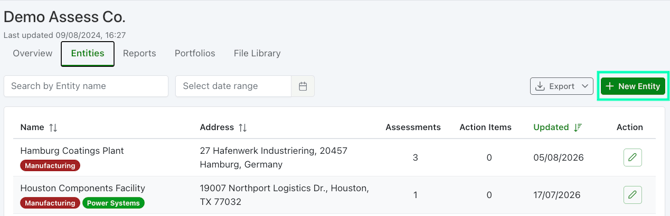
2. Click + New Entity.
3. Fill in the entity details. Fields marked with a red asterisk (*) are required and must be completed before you can Create. All other fields are optional and can be left blank, though we recommend adding as much relevant information as possible to keep your entity list clear and easy to navigate.
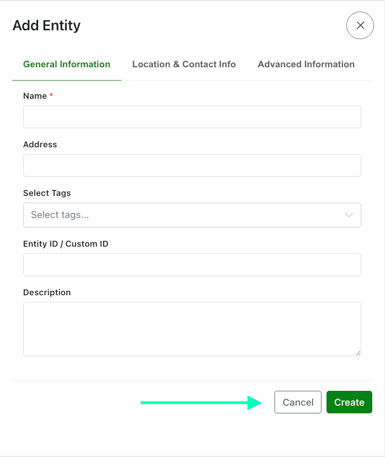
4. Click Create to save the entity.
Managing existing entities
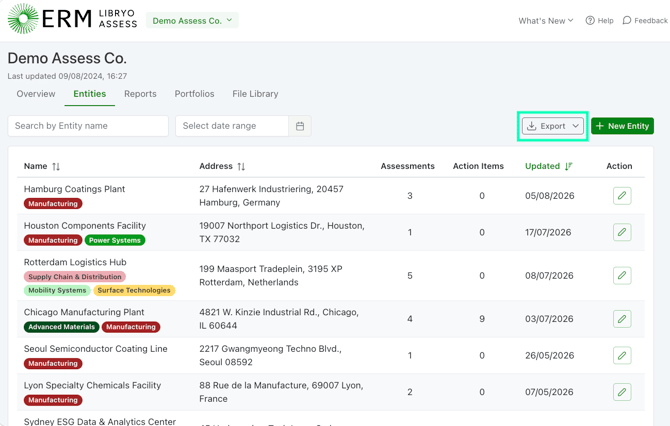
- To export the data for your Entities, click the Export option in the top-right of the Entities screen to download entity information.
- Delete: an entity can only be deleted once all associated assessments and action items have been removed. Click Delete on the entity, then confirm the deletion.
How to create an Entity Tag
Entity tags help you categorise and organise entities consistently across the platform, for example by region, standard, or business unit.
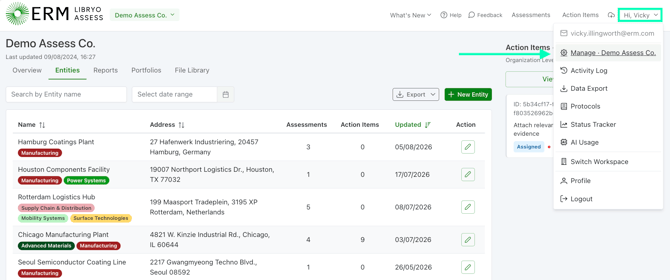
1. Select the drop-down arrow next to your username (top right of the screen), then click Manage to open Account Management.
2. Go to the Entity Tags tab.
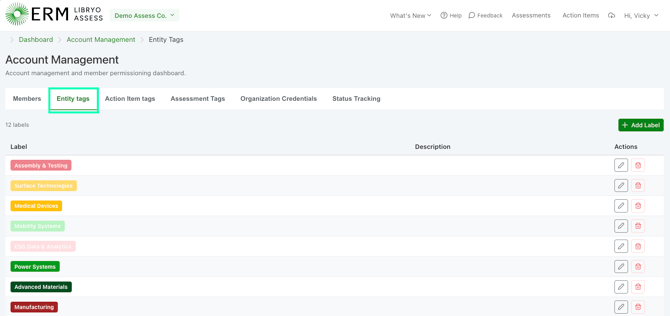
3. Click + Add Label.

4. Enter a Name and choose a Color for the tag. A description is optional.
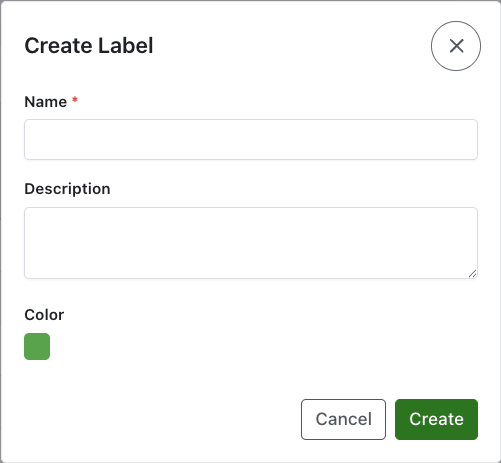
5. Click Create to save the tag.
Managing existing entity tags
To edit a tag, click the Edit (pencil) icon next to the tag, make your changes, then click Update to save.

To delete a tag, click the Delete (bin) icon next to the tag and confirm the action. Please note that deleted tags aren't gone for good, they can be restored later through the Activity Log if needed.

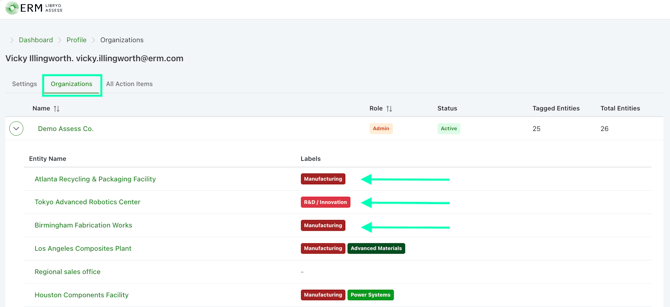
To view your Entity tags across organizations (for clients with multiple organizations), open your Profile.
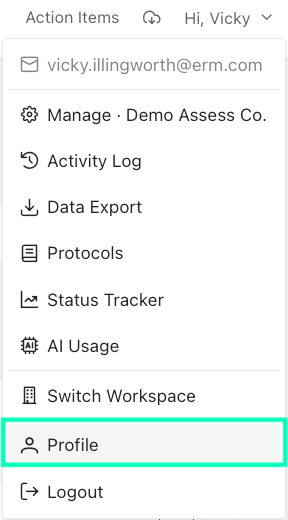
Next, go to the Organizations tab, and expand a specific organization using the arrow icon next to its title. Now you can review the Entity List and associated tags.
Have any questions?
At Libryo, we really want all our users to get the most from our application. If you have any questions or require further support, please contact us.